
Introducing Tourplanning+, the module that plans your employees automatically using an advanced algorithm.
You select the employees and the period. Tourplanning+ shows the work already planned as driving routes on a map, and can calculate a better order to drive them in. You can add tasks that are not planned yet, and adjust the result by hand.
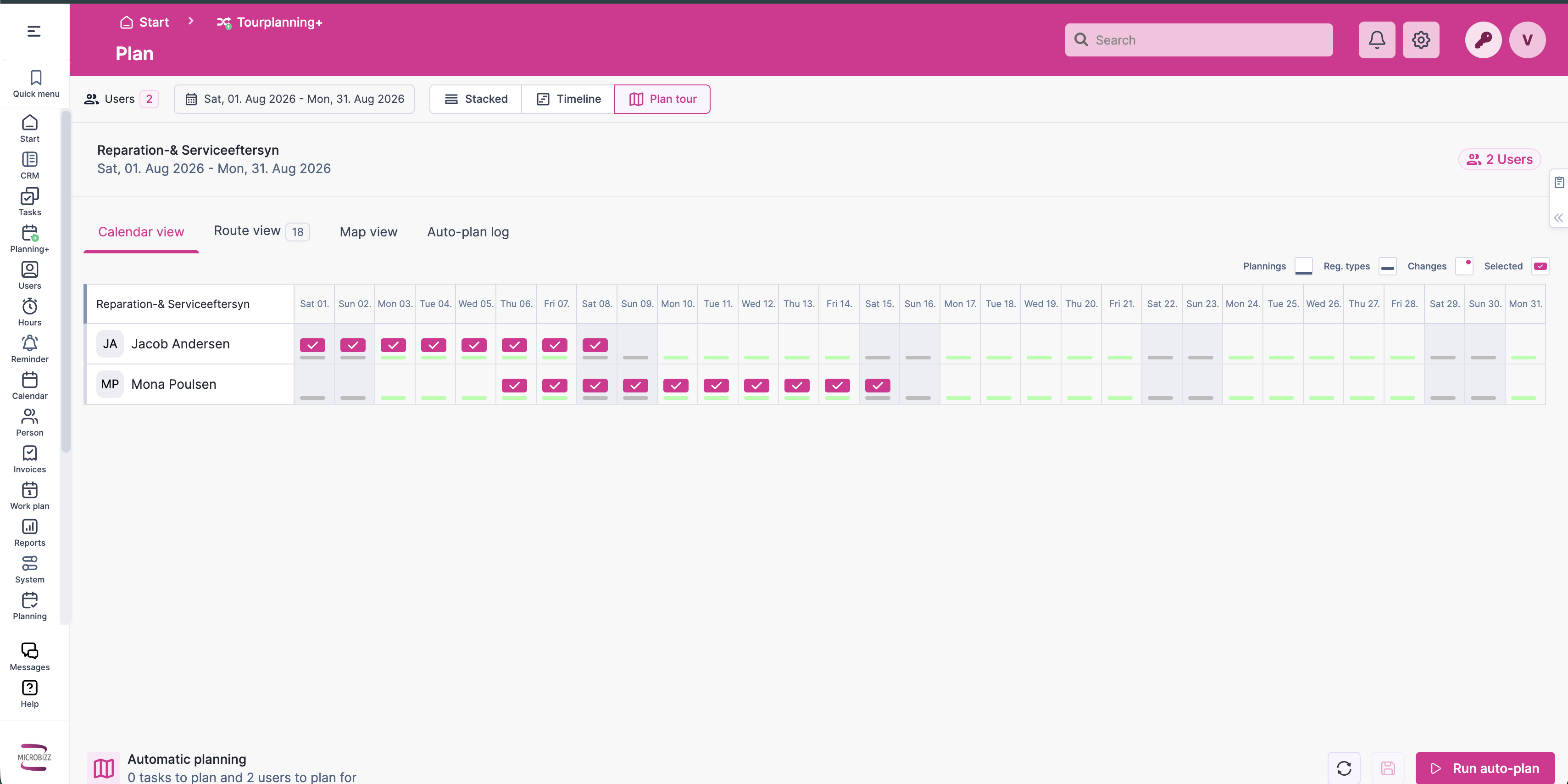
Nothing is saved until you press Save. What you see after optimising is a proposal on your screen, so you can try as many arrangements as you like.
The words we use
Stop: one thing to be visited, a planning or a task.
Leg: all the stops for one employee on one date.
Route: the driving between the stops in a leg.
Tour: a collection of legs.
Unplanned leg: the holding area for work that should be considered but has not been given to anyone yet.
Three things worth knowing up front
The algorithm looks for the cheapest plan, not the shortest. You set what an hour of work costs, what a kilometer costs and what overtime costs. The algorithm finds the arrangement with the lowest total. When a plan looks wrong, the cost settings are usually the reason and the fix.
It can only plan what it can measure. Every task needs a locatable address and an estimate, and every employee needs an address to start from. Most reports of odd behavior turn out to be one of these missing.
Locking protects an agreement. A locked stop is never moved by you or by the algorithm. Use it for work promised to a customer, and use it sparingly, because locking everything leaves the algorithm nowhere to put the rest.
The documentation and where to start
Read these in order if Tourplanning+ is new to you. Each page links to the next.
|
Page |
What it covers |
|---|---|
|
What the module does, where to find it, and the three things that must be in place before optimization works |
|
|
The toolbar, the period, and the four views: calendar, routes, map and auto-plan log |
|
|
Reading the grid, seeing who is away, and choosing the days you want to work on |
|
|
The plan drawn as driving routes, and what a bad day looks like on a map |
|
|
What the last optimization changed, the eight numbers, and how to decide whether to keep a run |
|
|
Times, driving gaps, locking, appointments, overnight stays and the unplanned area |
|
|
Running the auto-plan, reading the result, why stops come back unplanned, and saving |
|
|
5. Equipment planning
|
Planning machines and vehicles alongside people, and catching double-bookings*
|
|
The cost settings, the shape of a working day, and how to make some work give way to more urgent work |
|
|
The algorithm's requirements, its limits, and what is not built yet |